
Use CompWatch in ChatGPT or Claude
Connect ChatGPT or Claude to CompWatch's live competition data and ask questions like "what competitions under £2 have the best odds?" in your own conversation. It is free with a verified account, and works through the Model Context Protocol (MCP), so Cursor and other MCP apps can connect too.
What you can ask
Search competitions
"Find free competitions ending this week with odds under 1 in 200"
Best value picks
"What are the top 10 competitions by expected value under £5?"
Trust & safety checks
"Is Elite Competitions trustworthy? Show me their hostile T&C clauses"
Site comparisons
"Which sites have the highest trust scores and free entry routes?"
Competition details
"What's the sell-through rate on that BMW comp from Caddy Comps?"
Category browsing
"Show me all car competitions sorted by odds"
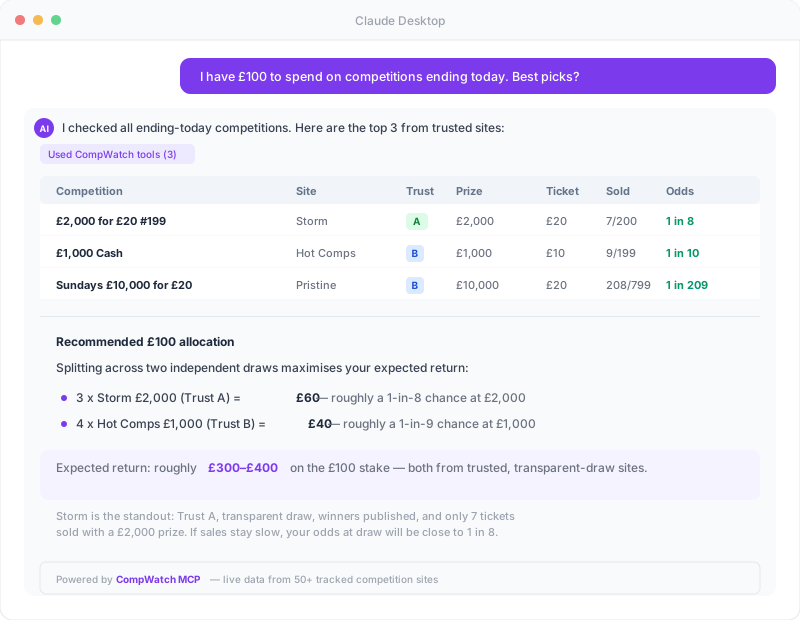
Real response from Claude Desktop using CompWatch data
Setup
1. Use a free, verified account
ChatGPT and Claude sign you in to CompWatch when you connect, so there is no token to copy. You only need a token for Cursor, Claude Code or a config-file setup.
Create a free account (or log in) and verify your email to get started.
2. Connect ChatGPT or Claude
Choose your app and follow the instructions:
In Claude, open Settings → Connectors and choose Add custom connector.
Name it CompWatch and enter the server URL:
https://compwatch.co.uk/mcp
Click Connect. You'll be sent to CompWatch to sign in and allow the connection, then returned to Claude. There is no token to copy.
Sign in with the same CompWatch account, with its email verified.
Open this file in a text editor:
- Mac:
~/Library/Application Support/Claude/claude_desktop_config.json - Windows:
%APPDATA%\Claude\claude_desktop_config.json
Create the file if it doesn't exist.
Paste this as the file contents and save:
{
  "mcpServers": {
    "compwatch": {
      "command": "npx",
      "args": [
        "mcp-remote",
        "https://compwatch.co.uk/mcp",
        "--header",
        "Authorization: Bearer YOUR_TOKEN_HERE"
      ]
    }
  }
}Restart Claude Desktop. You'll see a hammer icon when CompWatch is ready.
Requires Node.js installed on your machine.
In ChatGPT, go to Settings → Developer Mode and enable it.
Click Add App → MCP Server.
Enter the server URL:
https://compwatch.co.uk/mcp
For authentication, choose OAuth — CompWatch is detected automatically, so there's no token to copy. You'll be sent to CompWatch to sign in and authorize the connection, then returned to ChatGPT.
Requires a ChatGPT plan that supports custom MCP apps. Sign in with the same CompWatch account (email verified) when prompted to authorize.
In Cursor, go to Settings → MCP Servers → Add Server.
Enter the server URL:
https://compwatch.co.uk/mcp
Add a header: Authorization with value Bearer YOUR_TOKEN_HERE
Run this in your terminal:
claude mcp add compwatch -t http -H "Authorization: Bearer YOUR_TOKEN_HERE" -- https://compwatch.co.uk/mcpReplace YOUR_TOKEN_HERE with the token from step 1 (generate one there).
Data freshness
Competition data refreshes every 15 minutes. Competitions ending within the hour refresh more frequently.
Each response includes a last_scraped_at timestamp so your AI knows how fresh the data is.
Rate limits & fair use
The API is sized for conversational AI use — asking questions and getting answers, one at a time. Normal use will never hit a limit. If you hit one, wait a moment and retry.
Automated bulk querying or attempts to harvest the full dataset are throttled: sustained high-volume traffic from a token is automatically slowed down, and continued abuse may have its access restricted. Bulk extraction of competition data is also not permitted under our terms. If you need higher volume or a bulk data feed, see our data licence.
Need bulk or historical data?
The conversational API above is for AI-assistant use. For a supported, high-volume feed — or historical
and derived data (predicted final odds, expected value, sell-through history) — we license the
/api/v1 data feed separately, in tiers.
Free, no credit card required.